- Power the Radiar ZP10, and it will be in pairing mode, ready to be commissioned
- Choose the zone into which you want to commission the Radiar ZP10 from the top right corner of the app
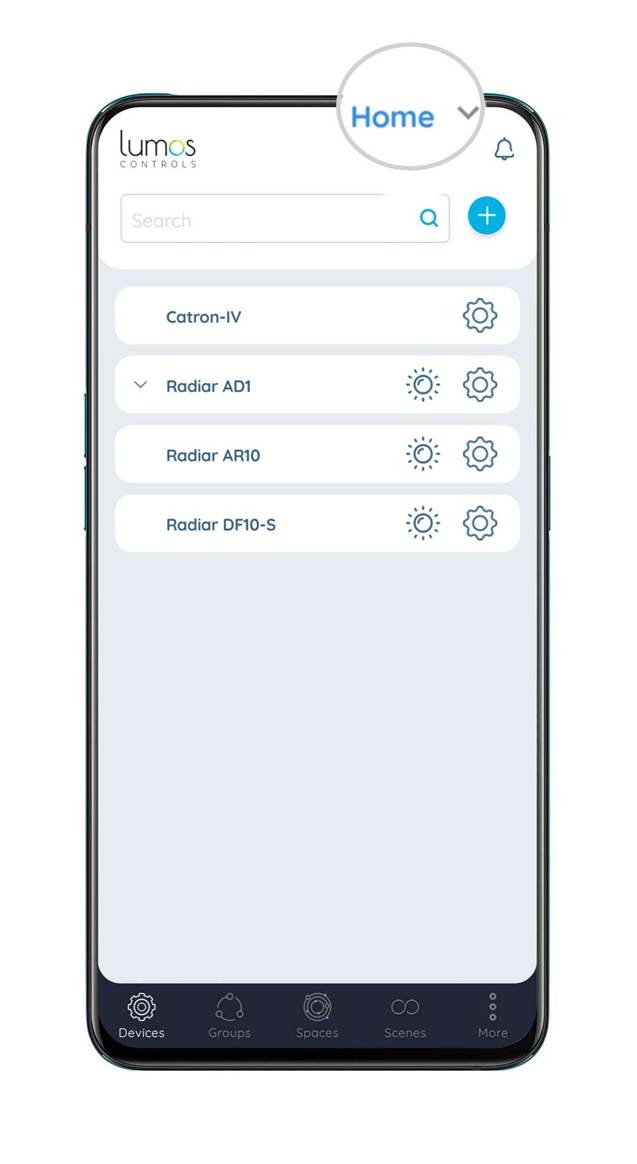
3. Go to the 'Devices' tab in the app
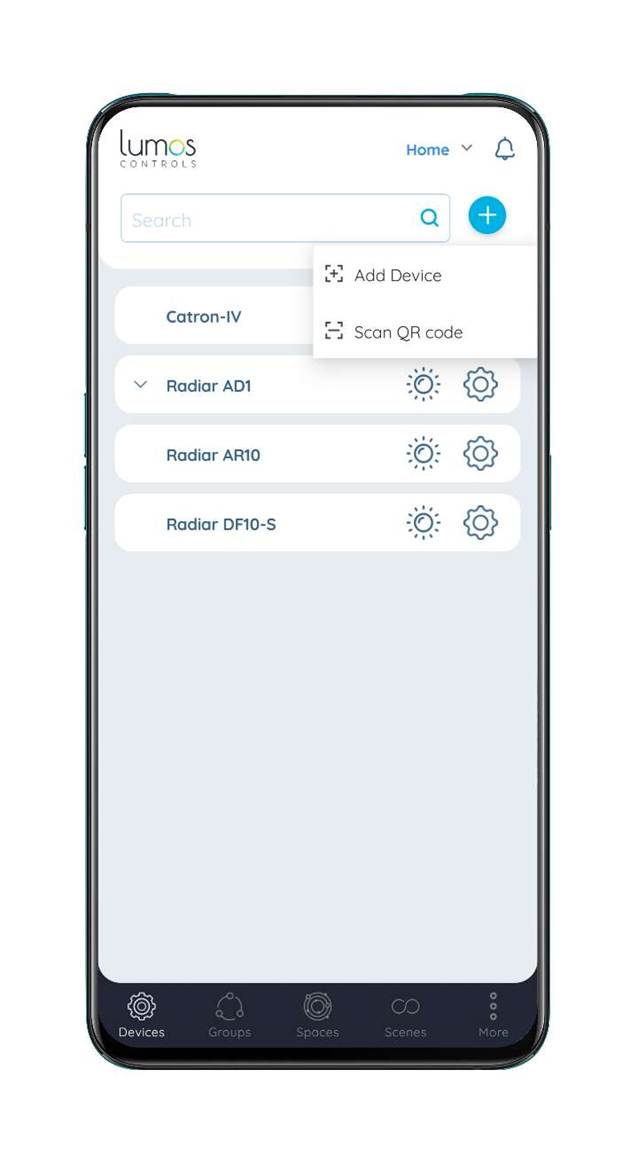
4. Click on the '+' button and choose the 'Add Device' option
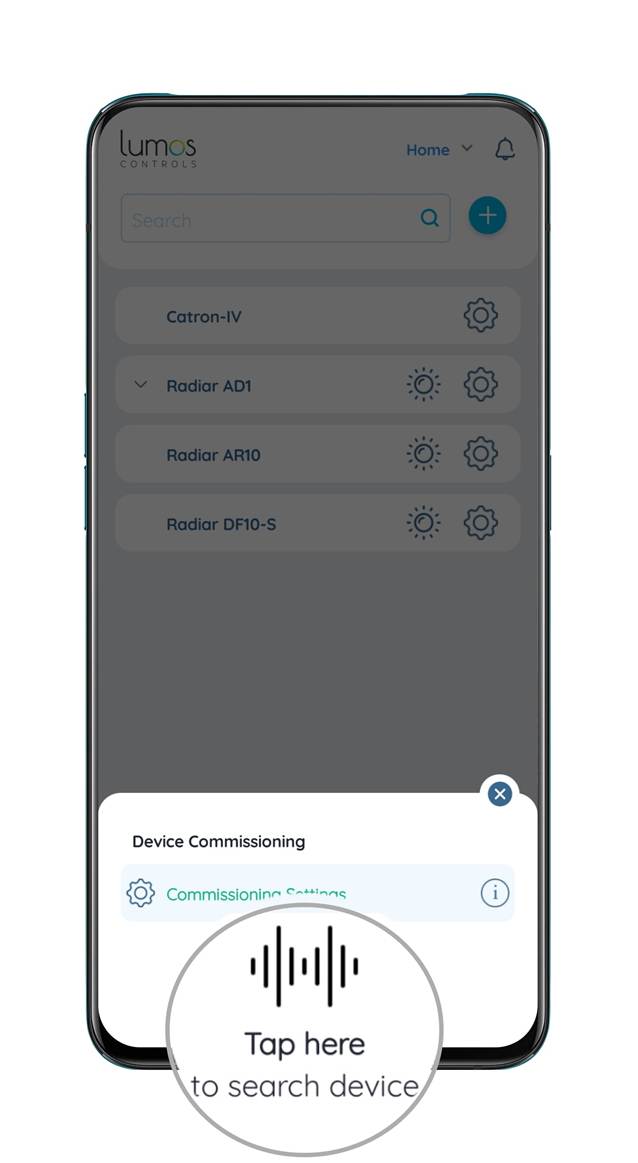
5. Click on 'Tap here', and the Radiar ZP10 will be listed
6. Press the '+' button corresponding to the Radiar ZP10, and the Radiar ZP10 will be commissioned
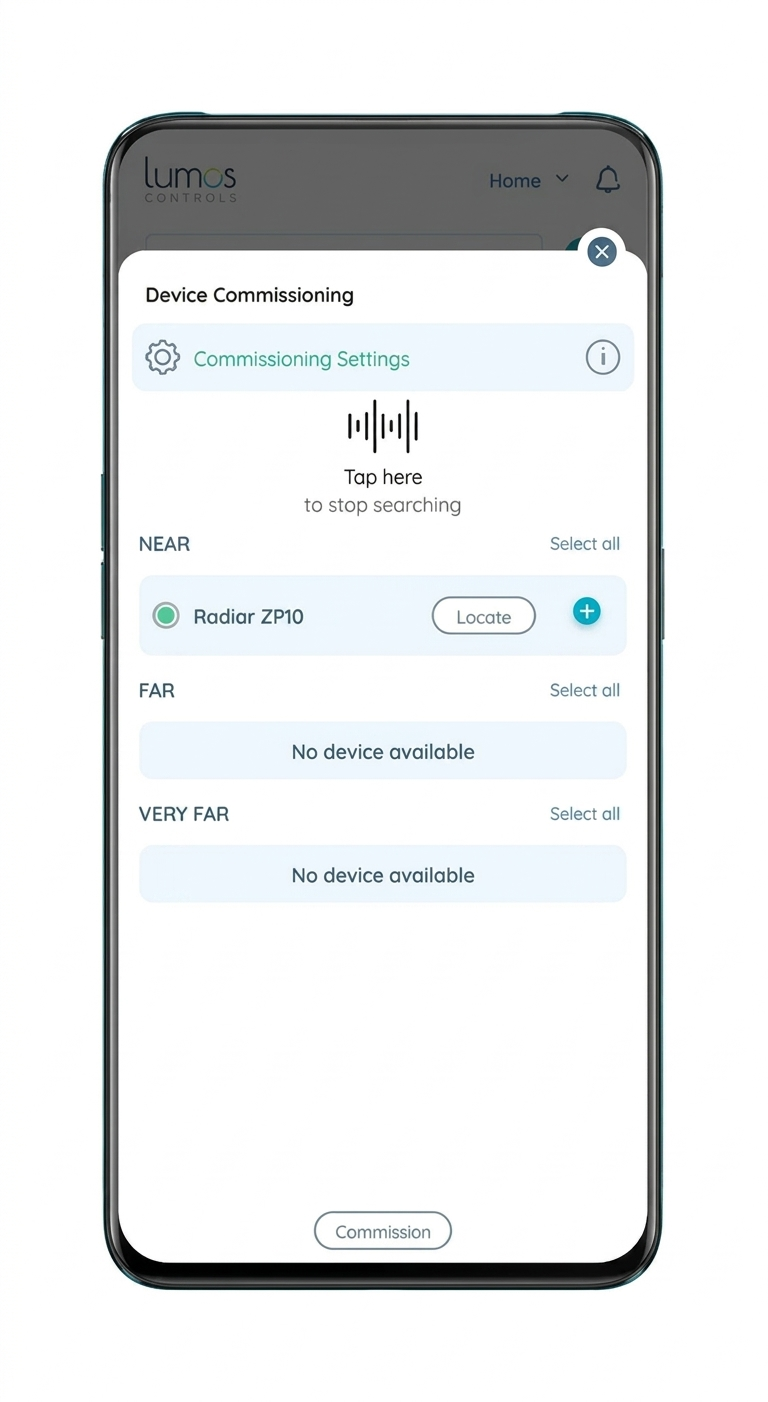
7. By default, Radiar ZP10 will be commissioned with settings configured in the 'Commissioning Settings'
Was this article helpful?
That’s Great!
Thank you for your feedback
Sorry! We couldn't be helpful
Thank you for your feedback
Feedback sent
We appreciate your effort and will try to fix the article